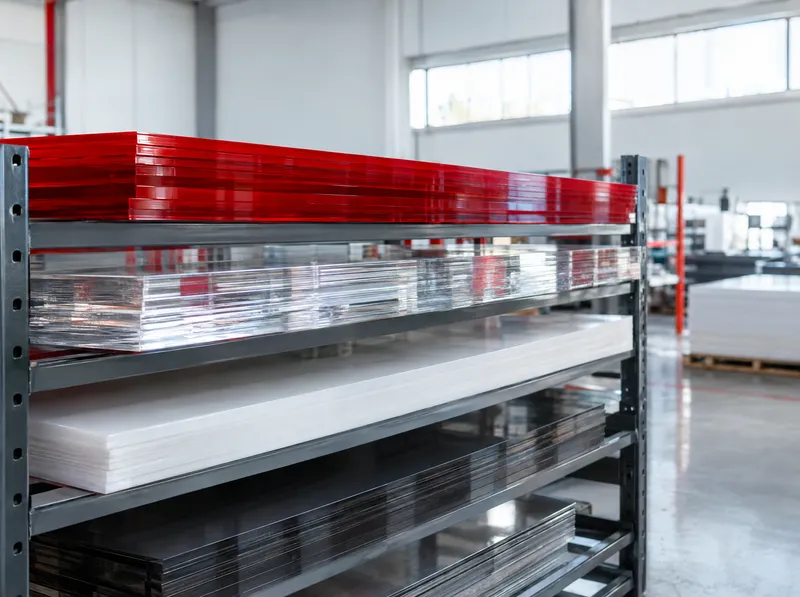
Sheet Products
17 products
Tool
Upload your SVG drawing to see how the parts nest on the sheet, how many sheets you need and how much waste remains.
Drag your SVG file here
or
SVG only · up to 10 MB
Your file is processed in your browser and is not uploaded to a server.
Choose an SVG file to see its parts.
·
Approximate calculation. This result is an approximate preliminary estimate; dimensions and product values must be checked before ordering materials and before production. Contact our branch for exact quantities and prices.
Recommended option
| Sheet size | Sheets | Total parts | Part area | Total sheet area | Waste | Efficiency | Preview |
|---|
This is an approximate layout. Cutting method, material direction and production choices may change the result.
Cutting files contain part outlines only; the unit is millimetres.
Add the calculation to the project basket and request one quote together with your other calculations. The branch nearest to you will get back to you.
Dealer loginIf you are a dealer, see prices and stock in the Dealer Portal.
Ask by phone: 0850 441 58 27From your drawing to a cutting plan in four steps.
Drag and drop the drawing with the parts to be cut, or choose the file.
Set the sheet material, the gap between parts and the rotation option.
The tool tries every sheet size, recommends the most efficient option and shows the layout.
Download the cutting SVG or DXF, or go to the quote form with the sheet size and count.
Yes. The tool is free, needs no account and shows no prices. Your SVG file is processed in your browser and is not uploaded to a server.
For now, SVG only. Export as SVG from CorelDRAW, Illustrator or Inkscape; convert text to outlines and save the drawing at real size in mm or cm.
Waste is the total area of the sheets used minus the total area of the parts. Efficiency is the ratio of part area to sheet area. The cutting gap is added between parts and the margin along the sheet edge.
No. The result is an approximate nesting; the cutting method, material direction and production choices can change it. Check dimensions before ordering; contact our branch for exact quantities and prices.
Use “Add to basket” below the result to add the calculation to the project basket. After adding your other calculations, “Request a quote” sends them all to the contact form in one message.
17 products